Overview of Main Screen
The Main screen contains all the elements to control all aspects of BrowserBuddy operation.
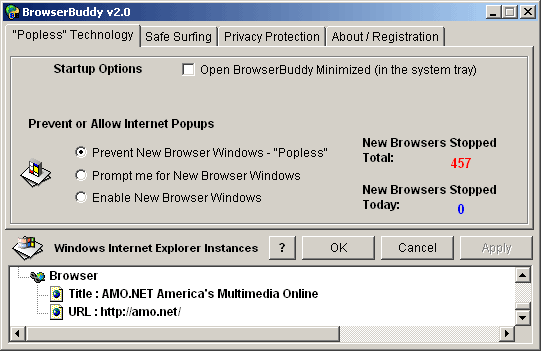
"Popless" Technology
Perhaps the most popular BrowserBuddy feature, our "Popless Technology" when enabled will prevent new browser windows also known as "popups" from even loading. There are three options here, Prevention, Prompting, and Enabling as described below:
Prevent New Browser Windows - "Popups" - Our "Popless" Technology is engaged, and only holding down the CTRL key will enable the new Browser Window to popup. When using this option, you may use the SHIFT and CTRL keys at the same time to show the new window in the current browser window.
Prompt me for New Browser Windows - BrowserBuddy will prompt you when a new Window is attempting to open and give you the opportunity to open or prevent it from opening.
Enabled New Browser Windows - Our "Popless" Technology is disabled, and new browser windows can open.
Windows Internet Explorer Instances - Here you will see a readout of each Windows Browser loaded on your system. From here you can easily Show the Browser, or Close the Browser with a simple Right Click of the mouse.
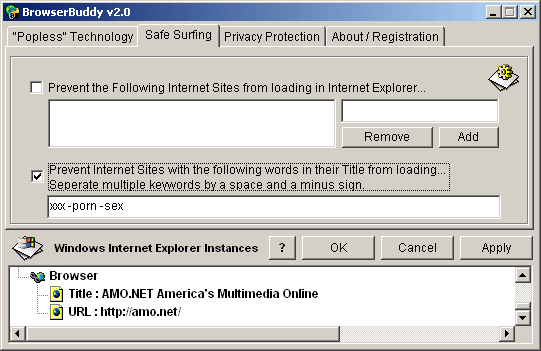
Safe Surfing
Safe Surfing enables you to control what kind of web sites internet content is allowed to load in your Internet Explorer Browser. You can prevent entire web sites, domains, or sites with particular keywords in their titles.
Prevent the following internet sites from loading in Internet Explorer. - Enable this checkbox here and add some sites to the list to enable this feature. To add a new web site to prevent from loading, simply type its domain name, or URL above the Add Button and click Add. To remove a site, select it from the list on the left and click remove.
Prevent sites with the following words in their Title from loading... - Enable this checkbox to prevent sites with certain keywords in them from loading. You may seperate multiple keywords by a space and a minus/dash sign. To remove a keyword, simply delete it and press the Apply Button.
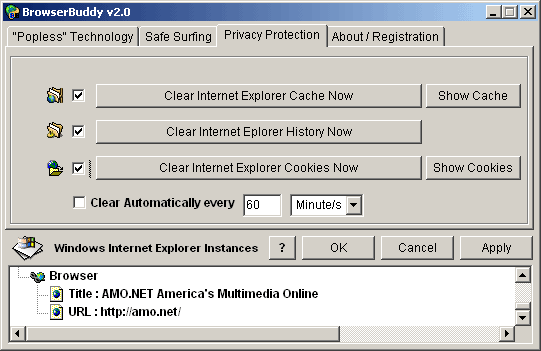
Privacy Protection
BrowserBuddy Privacy Protection clears your internet traces. BB can even periodically clear your internet files from your computer at given intervals.
Clear Internet Explorer Cache Now - Click this button to delete your internet cache files.
Click the checkbox to the left of this button to include clearing your internet cache automatically when the interval is reached.
Click the Show Cache button to show each file in your internet cache in a BrowserBuddy list. From this area you may also clear the cache, or individually delete cache files.
Clear Internet Explorer History Now - Click this button to delete the history of internet sites you have visited.
Click the checkbox to the left of this button to include clearing your internet history automatically when the interval is reached.
Clear Internet Explorer Cookies Now - Click this button to delete the cookies web sites have placed on your computer.
Click the checkbox to the left of this button to include clearing your internet cookies automatically when the interval is reached.
Click the Show Cookies button to show each internet cookie in your internet cache. From here you may select which cookies you want to save, and BrowserBuddy will not delete them.
Clear Automatically every number - Click this checkbox to automatically clear your internet cache, and or history, and or cookies when the specified interval is reached.
Saving or discarding changes
To save any changes you made to your settings, Click the Apply button and the changes will be saved and implemented immediately. To disregard any changes, simply press the Cancel button. To save any changes and place BrowserBuddy in your Windows Task Tray, press OK.

About BrowserBuddy and Registration
BrowserBuddy is free to use for the trial period of 10 days. After this time, BrowserBuddy will cease to function and will require registration to use past the trial period. This screen will allow you to easily Buy Now BrowserBuddy Securely online by clicking the button. Once you have obtained your registration info, simply enter it and press the Register button. Once BrowserBuddy is registered, this screen will display your license info and the registration area will disappear. You may access this help at any time by clicking the Help button.
If you had to reinstall Windows and BB and have lost your BB Registration Info, please send us your Purchase ID, NAME and Phone Number and we will cross check it with our records and send your your registration info again.
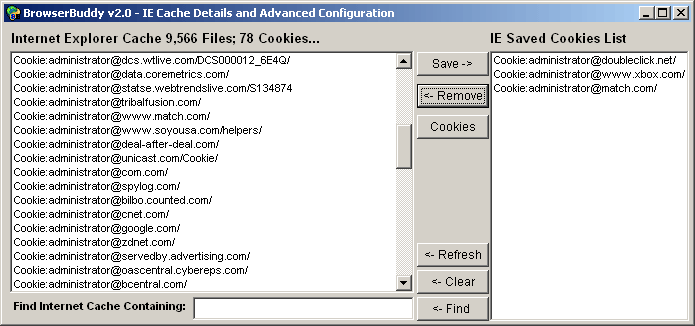
BrowserBuddy Enhanced Cache Control and Advanced Configuration
By clicking either the Show Cache or Show Cookies button from the BrowserBuddy Privacy Protection area, the BrowserBuddy Advanced Cache control window will display. From here you may manually delete any internet cache entry by double clicking on it.
Saving Cookies Is important in cases where you use the internet to frequently visit internet sites that require a cookie to remember you. To save a cookie, select it from the cache list on the left and click Save ->. An example of a Cookie you would want to save is one for a internet site where you frequently post to a message board. In this case, the internet site uses the cookie to remember who you are and saves you time by remembering your settings.
Removing Cookies Is as simple as selecting the cookie in your saved cookies list and clicking <- Remove. Cookies that are not saved in your saved cookies list are removed when you click Clear Internet Explorer Cookies Now.
Cookies - A useful feature to display just the internet cookies on your computer quickly and in the descending order in which they were placed on your computer.
<- Refresh Will quickly re-display your internet cache files in the BrowserBuddy list.
<- Clear Will quickly clear your internet cache files.
|





